Device compatibility
Check your device before you subscribe
IPTV Services delivers the subscription; you watch it through a player app on your own device. A few checks now save a wasted trial later. This page covers compatibility only — for the Wi-Fi in the TV room, use the connection planner.
Your screen. Your own setup.
A subscription and a player work together.
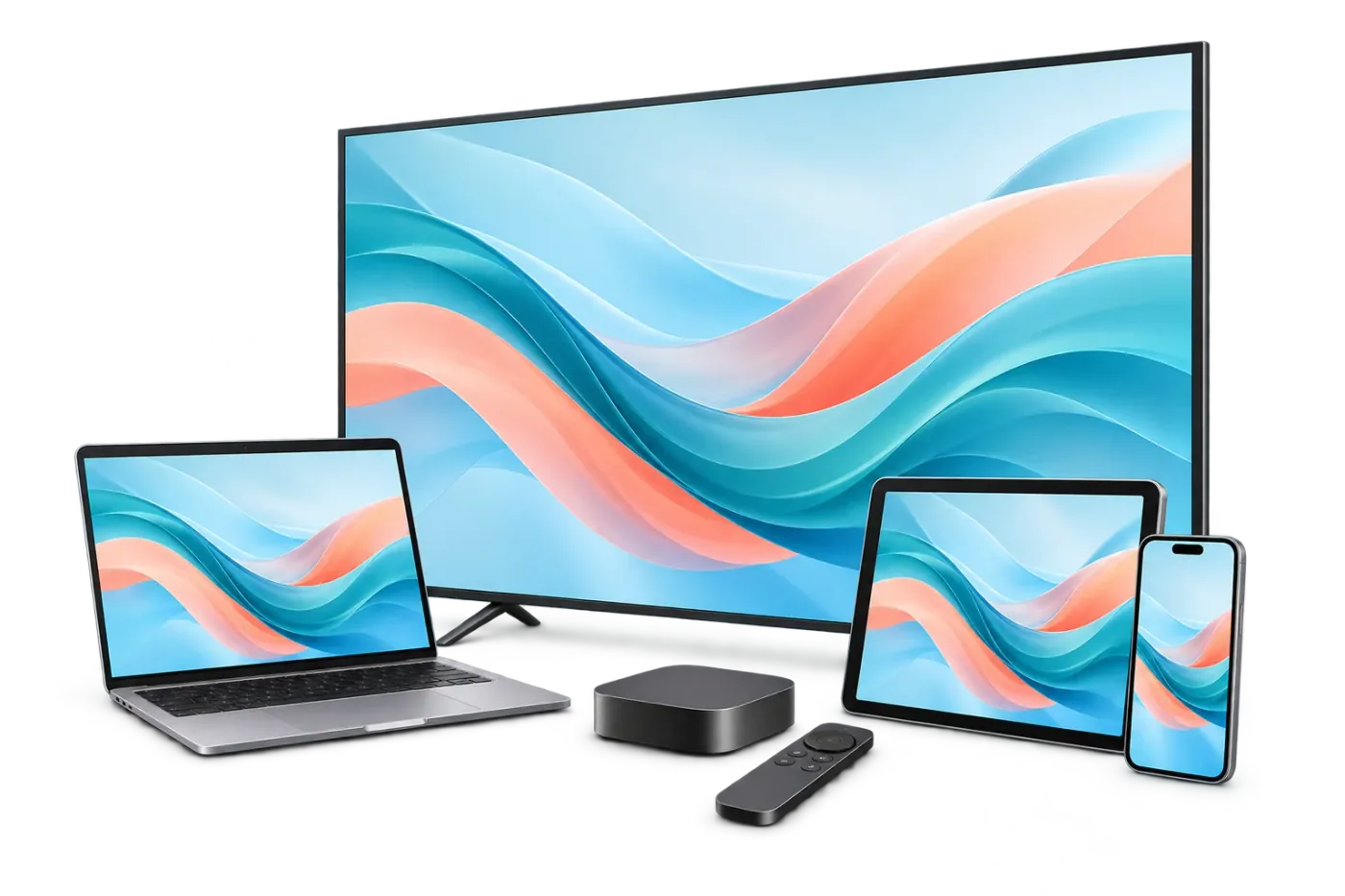
The subscription provides your access. A compatible player brings it to your television, streaming stick, phone or computer. Start with the exact model and its official app store, then check the connection in the room where you watch.
Before you choose a plan
Four small checks. A clearer first evening.
These checks apply to any device. They help you separate an app, a network connection and the subscription itself.
Official app store
Can the device install apps from its own store? Older TVs sometimes can’t get newer apps.
Up to date
Install pending system updates before your trial so they don’t interrupt it.
Network where it sits
Check the device’s own network screen in its real position — and whether it has an Ethernet port.
Typing the login
You’ll enter a username and password once. A phone remote app or keyboard makes that easier.
Manufacturer documentation was checked on 14 October 2026. Menus and app availability can change; the sources below record that review, rather than a test of every model.
Smart TVs
Samsung, LG and other TVs with an app store
Check before you subscribe
- Open the TV’s own app store and search for player apps on your actual model. Samsung says an app that doesn’t appear isn’t compatible with that TV model.
- Samsung TVs need a Samsung account to use Smart Hub. LG TVs install apps from the LG Content Store and can’t install Android apps from Google Play.
- Install any pending software update for the TV first.
- Check the network status screen with the TV in place (paths below) and look for an Ethernet (LAN) port on the back.
Where to look
- Samsung 2022 and newer: Settings → All Settings → Connection → Network → Network Status.
- Samsung 2021 and older: Settings → General → Network → Network Status.
- LG: Settings → General → Network.
App availability depends on the TV brand, model year and region. Some player apps are paid or charge their own activation fee — that’s separate from your IPTV Services subscription, and IPTV Services doesn’t sell it.
Next step
General setup steps for Smart TVs.
Set up Smart TVsManufacturer sources
- Samsung Canada: install an app on a Samsung TV
- Samsung Canada: check network status on a Samsung TV
- LG Canada: installing apps from the LG Content Store
- LG Canada: troubleshooting Wi-Fi on an LG TV
Menu paths from Samsung Canada and LG Canada support pages; which player apps appear on a given model is not verified.
Amazon Fire TV
Fire TV sticks, cubes and Fire TV-edition TVs
Check before you subscribe
- Confirm the device can install apps from the Amazon Appstore (Find → search → Get).
- Check for system updates in Settings.
- Some Fire TV devices need an Ethernet adapter for a wired connection — check your model before buying one.
- Check the network status with the stick in its normal position behind the TV.
Where to look
- Network status: Settings → Network, then press Play/Pause on the remote. Compatible models also offer a speed test there.
We only describe installing apps from the Amazon Appstore. We don’t publish instructions for installing apps from unknown sources.
Next step
General setup steps for Amazon Fire TV.
Set up Amazon Fire TVManufacturer sources
- Amazon.ca Help: download apps on Fire TV
- Amazon.ca Help: Fire TV network status tool
- Amazon.ca Help: fixing Fire TV Wi-Fi problems
- Amazon.ca Help: some Fire TV devices need an Ethernet adapter
Menu paths from Amazon.ca help pages; individual player apps not verified.
Google TV and Android TV
Google TV streamers, Android TV boxes and TVs
Check before you subscribe
- Confirm you can install apps: search and select Install, or browse the Apps tab.
- Install system updates from Settings.
- Check for an Ethernet port. Chromecast with Google TV can use an Ethernet adapter; the Google TV Streamer can connect to Ethernet directly.
- Check which network and band you’re on in Settings → Network & Internet, from where the device sits.
Where to look
- Network: Settings → Network & Internet. Google suggests moving the router closer, using a cable, or a 5 GHz network.
TV makers that build on Google TV or Android TV sometimes rename menus. Look for “Network & Internet” in Settings.
Next step
General setup steps for Google TV and Android TV.
Set up Google TV and Android TVManufacturer sources
- Google TV Help: install apps on Google TV
- Google TV Help: Settings → Network & Internet
- Chromecast Help: Ethernet adapter for Chromecast with Google TV
Menu paths from Google TV and Chromecast help pages; wording varies by TV manufacturer.
Apple TV, iPhone and iPad
Player apps from the App Store
Check before you subscribe
- Keep tvOS or iOS/iPadOS up to date.
- Apple TV 4K (3rd generation) comes in a Wi-Fi model without Ethernet and a Wi-Fi + Ethernet model. Earlier Apple TV 4K models and Apple TV HD have Ethernet.
- When an Ethernet cable is connected, Apple TV uses it instead of Wi-Fi automatically.
- Search the App Store on the device itself for player apps that support your login type.
Where to look
- Apple TV network: Settings → Network.
- Apple TV apps: App Store → choose the app → Get (free) or Buy.
Apple notes that not all App Store content is available in every country or on every Apple TV model. Some player apps charge their own fee, separate from IPTV Services.
Next step
General setup steps for Apple TV, iPhone and iPad.
Set up Apple TV, iPhone and iPadManufacturer sources
- Apple Support: which Apple TV models have Ethernet
- Apple Support: Apple TV network settings
- Apple Support: Ethernet takes priority over Wi-Fi on Apple TV
- Apple Support: App Store on Apple TV
- Apple Support: download apps on iPhone or iPad
Model and menu facts from Apple Support; individual player apps not verified.
Windows and Mac computers
Desktop player apps
Check before you subscribe
- Use a current operating system and keep the player app updated.
- A laptop on Wi-Fi in another room behaves like any other Wi-Fi screen — test where you’ll watch.
- Download player apps only from the developer’s official site or the Microsoft Store / Mac App Store.
A computer is useful for narrowing down a problem: if the same channel plays well on a computer with a cable to the router, look at the TV device’s Wi-Fi first.
Next step
General setup steps for Windows and Mac computers.
Set up Windows and Mac computersGeneral guidance only; no specific desktop app verified.
Android phones and tablets
Player apps from Google Play
Check before you subscribe
- Install apps from Google Play and keep Android updated.
- At home, make sure the phone is on your Wi-Fi rather than mobile data if your data plan is limited.
- Phones and tablets use a connection only while they stream.
Casting from a phone to a TV depends on the player app; not every app supports it.
Next step
General setup steps for Android phones and tablets.
Set up Android phones and tabletsGeneral guidance; casting support varies by app and is not verified.
More devices than connections is fine
Where your player’s licence and device compatibility allow it, you can install the app on the TVs, sticks and tablets you might use. Your plan limits how many stream at the same time, not how many have the app. Choose that number on the plans page.
This site doesn’t sell player apps or app activations. If a player app charges its own fee, that’s between you and the app’s developer.
Sources for device facts
- Install an app on your Samsung TV — Samsung Canada: install an app on a Samsung TV. Page dated Jun 17, 2026; checkedOct 14, 2026.
- Verify network status on your Samsung TV — Samsung Canada: check network status on a Samsung TV. Page dated Mar 17, 2026; checkedOct 14, 2026.
- App won’t install on LG Smart TV — LG Canada: installing apps from the LG Content Store. Page dated Nov 11, 2024; checkedOct 14, 2026.
- Troubleshooting Wi-Fi on your LG Smart TV — LG Canada: troubleshooting Wi-Fi on an LG TV. Page dated May 29, 2026; checkedOct 14, 2026.
- Download Apps on Your Fire TV — Amazon.ca Help: download apps on Fire TV. CheckedOct 14, 2026.
- What is the Fire TV Network Status Tool? — Amazon.ca Help: Fire TV network status tool. CheckedOct 14, 2026.
- How to Fix Fire TV Wi-Fi and Internet Connection Problems — Amazon.ca Help: fixing Fire TV Wi-Fi problems. CheckedOct 14, 2026.
- some Fire TV devices need an Ethernet adapter — Amazon.ca Help. CheckedOct 14, 2026.
- Install apps on Google TV — Google TV Help: install apps on Google TV. CheckedOct 14, 2026.
- Fix problems with your Google TV device — Google TV Help: Settings → Network & Internet. CheckedOct 14, 2026.
- Ethernet adapter for Chromecast with Google TV — Chromecast Help. CheckedOct 14, 2026.
- Identify your Apple TV model — Apple Support: which Apple TV models have Ethernet. Page dated May 1, 2026; checkedOct 14, 2026.
- Apple TV network settings — Apple Support. CheckedOct 14, 2026.
- If your Apple TV can’t connect to Wi-Fi — Apple Support: Ethernet takes priority over Wi-Fi on Apple TV. Page dated Apr 3, 2026; checkedOct 14, 2026.
- App Store on Apple TV — Apple Support. CheckedOct 14, 2026.
- Download apps on your iPhone or iPad — Apple Support: download apps on iPhone or iPad. Page dated Feb 4, 2026; checkedOct 14, 2026.